
Sunday, June 19, 2016
We will miss you Srinivas
We all live on this earth as though we will be here forever. I guess that's the way we're disposed to think. Otherwise, I guess all of us will simply prematurely end our lives.
To come to the point, one of my engineering friends has recently passed away. Even though I know that one day it'll be my time to go off the face of this planet, it made me very sad to know that he passed away not fully living his time. I just feel like I wanted to share or express my homage to him by writing it on my blog here.
It was 1998 fall and we just joined Engineering college, JNTU in Hyderabad. Just like my self being from rural background, Srinivas or fondly called YSR, Yampati Srinivasa Reddy being his full name, is also from a small village in current Telangana. We used to live in a hostel along with many other friends. One thing I always did was to play cricket, literally all day. I didn't know much about Srinivas except that he was the best EAMCET ranker in our mechanical engineering class. I think it was around 600 which I'd say is exceptional.
Like I said I used to play cricket all the time and if I remember right only thing I observed of Srinivas was that he used to sit in his room in front of books. I used to think of him as a just another bookish guy. Honestly speaking, I didn't care to think more than that. Then it all changed just in one moment.
One evening like it always was the case I was playing cricket with my friends and some one played a lofted drive and the ball ended up hitting Srinivas' room window and breaking it. I went into his room to get the ball and just like expected he wasn't happy. In fact he was upset and angry. Immediately I said sorry and started looking for a ball. That moment Srinivas said something around these words in thick Telangana accent "Emiraa mee amma naayana kastapadi mimmalni ikkadki pampisthe meeku kovvekki eppudu aatalentra". Actually it was very intense. I still remember I was so shocked I was taken aback and didn't know what to say.
I myself is not a guy to take things lightly when someone says things to my face. To my astonishment, I didn't get angry at all. In fact, he made a great impression on me. So, I said to him sorry again and asked him why couldn't he ease a bit and join us to play cricket. This guy truly had a great heart. He started smiling and refused the offer and said he needed to study. Immediately, I told him we were just beginning the semester and there was no need to sit 24 hours in front of books. Then he said he wasn't worried about our first year but he was preparing for IIT. I was like "wow, this guy is amazing". Then we ended up talking few things and then I asked him what book he was going through at that moment. To his surprise I ended up helping him solve few physics problems.
Another great aspect of this guy was he would tell you on your face whatever he thought or would think. That moment he told me "I really thought all you guys are brainless". I started laughing and then he said why I was wasting time and why couldn't I join him for IIT preparation. I laughed it off and wished him good luck. He was not only hardworking and truly apply himself there working towards a goal. I mean we were young and always wanted to have fun whether it be playing cricket, watching movies or talking about girls. That's the age, right? But this guy was special. He had discipline and he always knew what he wanted. How many of us had those qualities? If he had bit of luck I am sure he would have been here with us doing great things.
So our friendship continued. Like I said he always thought hostel environment wasn't helping him at all in reaching his goals. So, he left hostel pretty soon and took a room outside. One day I went with him to his room. I still remember it was raining pretty hard and I was shocked to see how small the room was. He asked me to sit there and started making food. You'd think no big deal, right? He had to cook under a tarp that had holes all the over place. Nothing bothered him. He quickly made something and offered me. To think back of that moment it makes me tearful. Great thing was he never complained.
One thing we both had in common was both of our families were dependent on farming. We used to talk how difficult it was for our families given that how difficult farming was. The more I know about him and his family the more I liked him.
At some point in third or fourth year he suddenly out of no where wanted to watch movies and have some fun. It was great to see him wanting to do other stuff as well. I think he must have felt the urgency to feel the fun as we were closing on finishing up our engineering. When our entire class went to Nagarjuna Sagar he was there next to me. We took one picture together and that's the only picture I have with him.
After engineering we all went separate routes and I ended up in Sweden doing masters. One day I got a very angry email from Srinivas asking whether I was alive or dead. I got so upset I wrote him back very angry response. Then he wrote me back apologizing. Of course I called him and we ended up talking for more than half an hour or so. It was heartbreaking to hear he went through real hard time after engineering. He stuck to mechanical engineering and it didn't do him any favours. After going through lot of difficulties he realized it was time to quit and go for software. As he was a sharp guy, he learned few things quickly and got a job in Infosys which I'd say amazing.
After that life was good to him. I talked to him few times and he was truly happy. He helped his family out as a dutiful first son in taking care of them as well as getting his sister married. He was always there as a son and brother. He said he was happy when he talked about his daughter.
For whatever reasons except for an odd email here and there we were not in touch that well for a while, I'd say at least in the last 2 years. Then suddenly he wrote me an email last December I think. I felt really happy that he cared enough to write an email after such a long time. Truly good friend. Then I wrote him back and eventually I called him. He was with his friends and we talked for 10 minutes. I said I'd call him soon again and told ourselves that we should do video chat and catch up on how our lives went, etc.
So, I was thinking of calling him sometime and then one day out of no where my friend Kishan mentioned to me what happened. It was biggest shock of my life. I was there next to my grandfather when he passed away. I cried a lot back then. But it was bound to happen with anyone when they get old and fragile. It's part of life. But it's not the case with Srinivas. He is in his thirties and having a life and working hard to take care of his family. Like any father he wanted to be there to take care of and guide and prepare his daughter towards her future. Then in one moment his life was ended.
Now I am asking myself again and again "why in the world this should happen to him?". I don't know the answer but one thing I know for sure is life is not fair. It's not fair at all. He should be here along with us doing great.
We will truly miss you Srinivas. If not for unfairness in life you would be here with your family. I know that no one can replace you for your family. As a friend I promise you we will try our best to help your family.
Bye for now Srinivas.
Sreedhar.


Sunday, August 17, 2014
Applescript to delete multiple Google Voice Messages
I use Android phone in my work as well in personal life. When we are paying so much for data on our phones why the heck should we pay for text bundles. So, out of million options I chose google voice as my text messaging application. Advantage with this one is that I could do pretty much everything from gmail/voice web interface.
My experience with google voice has been great except for one annoyance. On android phone it wouldn't delete me multiple messages at a time. I need to long press each message and then select delete from it. Over the time these tend to be hundreds. This means long pressing all these is not an option. So, you'd think we should be able to select all the read/unread/all messages from the google voice web interface like we can do for the emails on the gmail web interface (by clicking on select all on the inbox after selecting all messages in on the first page) and then be able to delete, etc. Nope, we can't do this on google voice web page. Sucks big time. This means we need to select all the messages on the page we're seeing and then select delete to delete them. Given that there might be hundreds of these messages we might have to select and click delete hundreds of times. Not a viable option for me.
Best option would be to write python code which does an excellent and foolproof job. But, again who has time. I definitely don't. So, I went for not so foolproof solution: applescript. You can make a nice application with applescript that would ask for details like "your username, password" and then store them in the keychain securely and also ask you "yes or no" questions to make sure you know what you're doing, and also which messages like "all/read/unread", etc.
I wanted to make this application but not sure whether it was worth it. In the mean time I put this code in few minutes and ran and my inbox was nice and empty on both web interface as well as on my android google voice app.
This is what I did. First, I logged in onto my gmail web interface from Safari. I saw that there were 253 total messages in my inbox (you can see that on the top right corner). I think each page shows 10 messages. So, I will have to make applescript go through 26 pages. You can program it as (numberOfMessages div 10).
Then I ran this script from applescript editor and in few minutes my inbox was empty. That's it. When I tried to run the same script on my home mac I had few problems. The reason was that on my home mac pressing tab two times was enough to reach select checkbox on the page where as I needed to press tab three time on my office mac.
Anyway, it'd be simple to change these to make it work. As you notice, I'm making applescript open google voice page. It opens it without asking for password as you've already opened your gmail account. Now, it'd wait for 3 seconds. This is to make sure page opened in time before applescript goes onto pressing keys. Increase it in case you've slower internet (I doubt it these days). Ascii character 31 is lower arrow key. Everything is self explanatory.
There is no need for closing the page each and every cycle. The reason I did that was I was already using another applescript script to do some tasks on our dns manager. I simply copied that and modified. Anyway play with it. The other reason is, occasionally it doesn't do what it is supposed to do and so closing and opening the page makes it like starting afresh.
My experience with google voice has been great except for one annoyance. On android phone it wouldn't delete me multiple messages at a time. I need to long press each message and then select delete from it. Over the time these tend to be hundreds. This means long pressing all these is not an option. So, you'd think we should be able to select all the read/unread/all messages from the google voice web interface like we can do for the emails on the gmail web interface (by clicking on select all on the inbox after selecting all messages in on the first page) and then be able to delete, etc. Nope, we can't do this on google voice web page. Sucks big time. This means we need to select all the messages on the page we're seeing and then select delete to delete them. Given that there might be hundreds of these messages we might have to select and click delete hundreds of times. Not a viable option for me.
Best option would be to write python code which does an excellent and foolproof job. But, again who has time. I definitely don't. So, I went for not so foolproof solution: applescript. You can make a nice application with applescript that would ask for details like "your username, password" and then store them in the keychain securely and also ask you "yes or no" questions to make sure you know what you're doing, and also which messages like "all/read/unread", etc.
I wanted to make this application but not sure whether it was worth it. In the mean time I put this code in few minutes and ran and my inbox was nice and empty on both web interface as well as on my android google voice app.
This is what I did. First, I logged in onto my gmail web interface from Safari. I saw that there were 253 total messages in my inbox (you can see that on the top right corner). I think each page shows 10 messages. So, I will have to make applescript go through 26 pages. You can program it as (numberOfMessages div 10).
Then I ran this script from applescript editor and in few minutes my inbox was empty. That's it. When I tried to run the same script on my home mac I had few problems. The reason was that on my home mac pressing tab two times was enough to reach select checkbox on the page where as I needed to press tab three time on my office mac.
Anyway, it'd be simple to change these to make it work. As you notice, I'm making applescript open google voice page. It opens it without asking for password as you've already opened your gmail account. Now, it'd wait for 3 seconds. This is to make sure page opened in time before applescript goes onto pressing keys. Increase it in case you've slower internet (I doubt it these days). Ascii character 31 is lower arrow key. Everything is self explanatory.
There is no need for closing the page each and every cycle. The reason I did that was I was already using another applescript script to do some tasks on our dns manager. I simply copied that and modified. Anyway play with it. The other reason is, occasionally it doesn't do what it is supposed to do and so closing and opening the page makes it like starting afresh.
tell application "Safari"
 activate
 tell window 1
  set current tab to (make new tab with properties {URL:"https://www.google.com/voice"})
  delay 3
  repeat with n from 0 to 25
   tell application "System Events"
    keystroke tab
    keystroke tab
    keystroke tab
    keystroke space
    keystroke (ASCII character 31)
    keystroke return
    keystroke tab
    keystroke tab
    keystroke tab
    keystroke tab
    keystroke return
   end tell
   delay 3
  end repeat
  tell application "System Events"
   keystroke "w" using command down
  end tell
 end tell
end tell
Monday, March 25, 2013
Giving an icon to an applescript application
I showed how to save an applescript code as an application in my previous post. In this post I will show how to give a different image to an applescript application to replace the customary apple applet icon. I've already saved one of my codes that opens my gmail web account in safari (check my previous posts) as an app "GMail" on my Desktop.
First thing I did was to choose an icon from google images. Just search for whatever image you'd like to give it to your app. I chose some GMail image that came up in the images search. Then, open the image with preview.
Select the image and copy it to clipboard.


Then, right click on the app you saved and select "Get Info".

Click on the applet icon in the left most corner of the info window that has opened up. You can blue shade around the icon highlighting the fact it has been selected.

After that, just paste the image we've copied onto clipboard from preview by doing command + v. Now, you can see that icon has been changed.

This is what I've got on my Desktop. As you can see the icon of the app has been changed. This looks much better. Right?


First thing I did was to choose an icon from google images. Just search for whatever image you'd like to give it to your app. I chose some GMail image that came up in the images search. Then, open the image with preview.
Select the image and copy it to clipboard.


Then, right click on the app you saved and select "Get Info".

Click on the applet icon in the left most corner of the info window that has opened up. You can blue shade around the icon highlighting the fact it has been selected.

After that, just paste the image we've copied onto clipboard from preview by doing command + v. Now, you can see that icon has been changed.
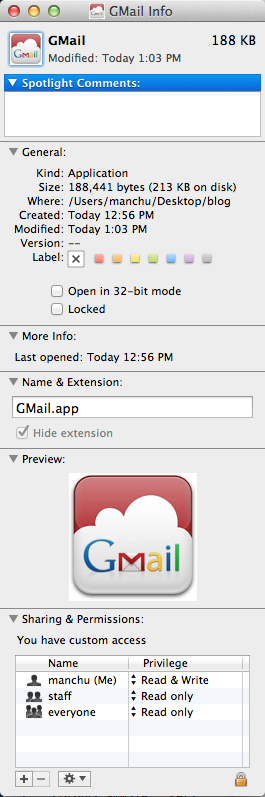
This is what I've got on my Desktop. As you can see the icon of the app has been changed. This looks much better. Right?

Now, you can simply drag this app onto your dock and with one click you have your application running.

Making an app from applescript
This post shows how to make an app from applescript code on your mac.
First, open applescript editor and write/put some applescript code. Press Command + Space bar and type apple and you should applescript editor like shown below.

Save the code in scpt (script) format just in case you'd like to make changes at some point in the future.


First, open applescript editor and write/put some applescript code. Press Command + Space bar and type apple and you should applescript editor like shown below.

Save the code in scpt (script) format just in case you'd like to make changes at some point in the future.


Once you're done saving it scpt format, try to save it again by selecting duplicate and then rename it from the arrow mark next to title of the document it self.


Now you should see the app "display" where ever you saved it. I saved it on the Desktop and this is how it looks.

Double clicking on it would make it run like any other application on your Desktop. Since I put the code 'display dialog "Hello! How are you?", running it would show a display dialog with this content like shown below.

App on Mac through applescript to open GMail web account in Safari
Recently, out of curiosity I started writing an applescript code to make an app to login onto my gmail web account. Once I started it I realized there are many things I needed to consider. Here are the different scenarios:
1) One just booted the system. Hence, the app should start Safari, open Gmail login page and then login with credentials stored in a keychain.
2) One has already logged into his gmail account. But, the page has been closed but account hasn't been logged out. In this scenario, app should not enter the username and password as when it tries to open the Gmail login page your Gmail opens up with your inbox with emails since you already logged in before closing the page.
3) You logged out but didn't close the page. Then, after a while you want to log back in. In this case it should not reopen the login page but find the already logged out page that's open and put the credentials.
4) The account is already opened and active in a tab that is not in focus right now. In this situation, app should simply bring this tab to the front.
5) The other case is where Safari is minimized with account is already open but page is closed, is logged out but page is open, etc.
6) Most important thing is to make sure Gmail login page loads before it starts entering username and password.
7) At the same time accessing username and password has to be secure.
8) Multiple windows and tabs are open and the app should cycle through them to find some of the above mentioned cases.
This code covers all these cases. I'm sure there are many more one might come across. For now this is working great for me on my 3 different macs (office iMac, home iMac and Macbook Pro). All these 3 have mountain lion operating system with Safari 6.0.3.
This code uses apple security tool to access the username and password I have stored in a keychain. This makes it very secure unlike storing the password in the script it self (check for one of my previous scripts).
The one important thing one needs to remember is to change the keychain location in the script based on their username. For example, on all my macs my username is manchu and I store the keychain in the default location of /Users/manchu/Library/Keychain. So, if you save it in the default location then you should just change manchu in the above path with your home directory name (the one that has home/house symbol in the finder window on the left pane).
This code ensures that page has successfully loaded by checking whether File --> Save as becomes active in the Safari menu. I'm not sure whether this is the right way but some how it appears to be working ok. I have given 10 seconds for the page to load. If it doesn't happen before that it will let you know that page has failed to load through announcement as well as display dialog. If you don't want your Mac to announce it then hash the lines with "say".
If you'd like to use this script, then make sure you create a keychain with your Gmail login credentials in it and change the path to it in the script below. You can see my post before this one to know how to create a keychain.
Here is the code:
1) One just booted the system. Hence, the app should start Safari, open Gmail login page and then login with credentials stored in a keychain.
2) One has already logged into his gmail account. But, the page has been closed but account hasn't been logged out. In this scenario, app should not enter the username and password as when it tries to open the Gmail login page your Gmail opens up with your inbox with emails since you already logged in before closing the page.
3) You logged out but didn't close the page. Then, after a while you want to log back in. In this case it should not reopen the login page but find the already logged out page that's open and put the credentials.
4) The account is already opened and active in a tab that is not in focus right now. In this situation, app should simply bring this tab to the front.
5) The other case is where Safari is minimized with account is already open but page is closed, is logged out but page is open, etc.
6) Most important thing is to make sure Gmail login page loads before it starts entering username and password.
7) At the same time accessing username and password has to be secure.
8) Multiple windows and tabs are open and the app should cycle through them to find some of the above mentioned cases.
This code covers all these cases. I'm sure there are many more one might come across. For now this is working great for me on my 3 different macs (office iMac, home iMac and Macbook Pro). All these 3 have mountain lion operating system with Safari 6.0.3.
This code uses apple security tool to access the username and password I have stored in a keychain. This makes it very secure unlike storing the password in the script it self (check for one of my previous scripts).
The one important thing one needs to remember is to change the keychain location in the script based on their username. For example, on all my macs my username is manchu and I store the keychain in the default location of /Users/manchu/Library/Keychain. So, if you save it in the default location then you should just change manchu in the above path with your home directory name (the one that has home/house symbol in the finder window on the left pane).
This code ensures that page has successfully loaded by checking whether File --> Save as becomes active in the Safari menu. I'm not sure whether this is the right way but some how it appears to be working ok. I have given 10 seconds for the page to load. If it doesn't happen before that it will let you know that page has failed to load through announcement as well as display dialog. If you don't want your Mac to announce it then hash the lines with "say".
If you'd like to use this script, then make sure you create a keychain with your Gmail login credentials in it and change the path to it in the script below. You can see my post before this one to know how to create a keychain.
Here is the code:
# Applescript to open Gmail account in Safari.
# Written by Sreedhar Manchu.
# Password retrieval from keychain access has been accomplished with the code
# found on www.vickash.com. The page is titled "More Secure Passwords In Applescript"

set IsDefined to true
set theCredentials to getCredentials of ¬
 "GMailPersonal" from "/Users/manchu/Library/Keychains/WebLogins.keychain"
set userName to account of theCredentials
set thePW to password of theCredentials
set theTitle to "" & userName & "@gmail.com - Gmail" as string
if appIsRunning("Safari") then
 tell application "Safari"
  activate
  if windows is not {} then
   activate
   repeat with j from (count of windows) to 1 by -1
    repeat with i from (count of tabs of window j) to 1 by -1
     set thisTab to tab i of window j
     set thePageName to name of thisTab
     #display dialog thePageName
     if thePageName contains theTitle then
      set current tab of window j to thisTab
      set windowNum to j
      set alreadyLogged to true
     end if
    end repeat
   end repeat
  end if
 end tell
end if
try
 get alreadyLogged
on error
 set IsDefined to false
end try
if IsDefined then
 tell application "Safari"
  activate
  set index of window windowNum to 1
 end tell
else
 set IsDefined to true
 set theTitle to "Gmail: Email from Google" as string
 tell application "Safari"
  activate
  if windows is not {} then
   activate
   repeat with j from (count of windows) to 1 by -1
    repeat with i from (count of tabs of window j) to 1 by -1
     set thisTab to tab i of window j
     set thePageName to name of thisTab
     if thePageName is equal to theTitle then
      #set tabNum to i
      set theWindows to windows
      set winOne to item j of theWindows
      if (miniaturized of winOne) then
       #set miniaturized of winOne to false
       activate
       #delay 0.5
      end if
      #set currentTab to item i of tabs of window j
      set currentTab to item i of tabs of winOne
      #set winOne to item j of windows
      set alreadyOpen to true
     end if
    end repeat
   end repeat
  end if
 end tell
 try
  get alreadyOpen
 on error
  set IsDefined to false
 end try
 if IsDefined then
  tell application "Safari"
   activate
   tell winOne
    set index to 1
    set visible to false
    set visible to true
   end tell
   #set thisTab to tab tabNum of window 1
   #set current tab of window 1 to thisTab
   set current tab of window 1 to currentTab
   tell application "System Events"
    keystroke userName
    keystroke tab
    keystroke thePW
    keystroke return
   end tell
  end tell
 else
  tell application "Safari"
   activate
   if windows is not {} then
    tell window 1
     if (miniaturized) then
      set miniaturized to false
     end if
     set current tab to (make new tab with properties {URL:"https://mail.google.com"})
     #set current tab to (make new tab with properties {URL:"http://www.bsnl.co.in"})
    end tell
   else
    tell application "Safari"
     activate
     make new document with properties {URL:"https://mail.google.com"}
    end tell
   end if
  end tell
  if page_loaded(10) then
   set IsDefined to false
   tell application "Safari"
    activate
    #set theURL to URL of current tab of front window as text
    #set thePageName to name of current tab of front window as string
    set thePageName to name of current tab of window 1 as string
    if thePageName as string is equal to "" or thePageName as string is equal to null or thePageName is equal to missing value then
     set pageIsNotLoading to true
    end if
   end tell
   try
    get pageIsNotLoading
   on error
    set IsDefined to true
   end try
   if IsDefined then
    #display dialog thePageName
    set theTitle to "" & userName & "@gmail.com - Gmail" as string
    if thePageName does not contain theTitle then
     tell application "Safari"
      activate
      tell application "System Events"
       keystroke userName
       keystroke tab
       keystroke thePW
       keystroke return
       say "Gmail login has been successful"
      end tell
     end tell
    end if
   else
    say "Either page has failed to load or Gmail is taking time"
    display dialog "Either page has failed to load or Gmail is taking time!"
   end if
  end if
 end if
end if

on page_loaded(timeout_value) -- in seconds
 tell application "System Events"
  tell process "Safari"
   tell menu 1 of menu bar item "File" of menu bar 1
    repeat with i from 1 to timeout_value
     if enabled of menu item "Save as..." is false then
      delay 0.5
     else
      return true
     end if
     if i is timeout_value then
      #set timeoutValue to timeout_value * 0.5
      beep
      display dialog "" & timeout_value * 0.5 & " seconds have elapsed; Either page has failed to load or Gmail is taking time!"
      return false
     end if
    end repeat
   end tell
  end tell
 end tell
end page_loaded

on extractData(theText, theFieldName, theEndDelimiter, spaces)
 set theDataStart to the offset of theFieldName in theText
 if theDataStart = 0 then
  return ""
 else
  set theDataStart to theDataStart + (length of theFieldName) + spaces
  set theData to text theDataStart through end of theText
  set theDataEnd to ((offset of theEndDelimiter in theData) - 1)
  set theData to text 1 through theDataEnd of theData
 end if
end extractData

on getCredentials of theKeychainItem from theKeychain
 set theKeychainPath to (POSIX path of theKeychain) as text
 try
  set theKeychainAlias to (POSIX file theKeychainPath) as alias
  set theKeychainPath to (POSIX path of theKeychainAlias)
 on error
  return "Keychain file not found at specified location: " & ¬
   theKeychain as text
 end try
 try
  set theResult to do shell script ¬
   "security 2>&1 find-generic-password -gs " & ¬
   theKeychainItem & " " & ¬
   quoted form of theKeychainPath
  set theAccount to extractData(theResult, "\"acct\"<blob>=\"", "\"", 0)
  set thePassword to extractData(theResult, "password: \"", "\"", 0)
  return {account:theAccount, password:thePassword}
 on error
  return "Generic password item specifeid does not exist in keychain: " & ¬
   theKeychainItem
 end try
end getCredentials

on appIsRunning(appName)
 tell application "System Events" to (name of processes) contains appName
end appIsRunning
Creating a new keychain on Mac
Recently, I wanted to make an app on my mac for logging onto my gmail account in Safari browser. Once I started looking into applescript I realized best way to use an login credentials is through mac native keychain access. For my GMail applescript I had to make a keychain and this is how I did it.
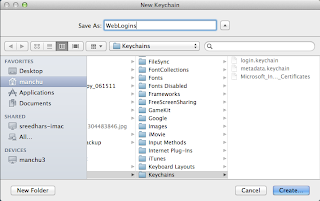
First, open keychain access from applications. Goto File --> New Keychain or selecting New Keychain from the popup that comes up when you right click on the left pane as shown below:

I gave a name 'WebLogins' and created in a default location "/Users/manchu/Library/Keychains/"
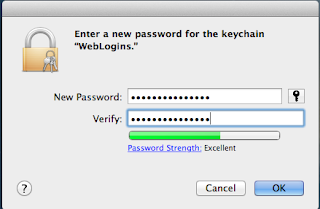
Enter a password for the newly created keychain. This keeps all your username and password combinations we're going to keep in this keychain secure just in case some one got hold of your system.
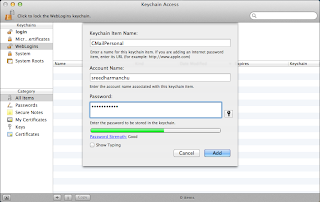
Now click on WebLogins in the left pane and then click on "+" all the way below immediately next to the left pane. This would ask you to give a name to the item you're going to create. I gave it GMailPersonal as I'm going to use this item for logging onto my GMail web account. For account name I use my GMail username and for Password I use my GMail account password. Save it by clicking "Add".
Next step is to change the settings for this Keychain. Right click on "WebLogins" and select 'Change Settings for Keychain "WebLogins"...' as shown below:
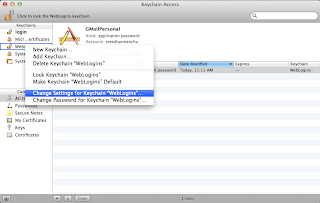
Since I need my app to access these credentials randomly I uncheck the first item as I don't want to enter the keychain password every time it accesses the keychain. Since I use this to see my gmail it doesn't make sense to uncheck "Lock when sleeping" as I don't need to activate my app either remotely or make it run at certain time in a day (let's say cron job) in my absence.
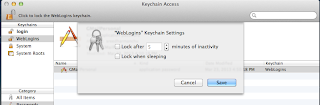
In my applescript I use the tool security to access the username and password from the WebLogins keychain. You'd be asked to either always allow or deny or just one-time allow the security to access the username and password. I go for always allow as I don't want to enter keychain password through out the day.
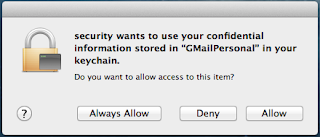
Whenever you logout of or restart the system you will be asked to enter the keychain password as a security feature. As you see security tool is trying to use the password.
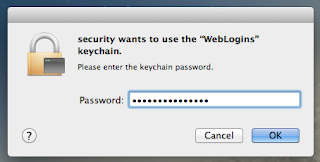

I gave a name 'WebLogins' and created in a default location "/Users/manchu/Library/Keychains/"

Enter a password for the newly created keychain. This keeps all your username and password combinations we're going to keep in this keychain secure just in case some one got hold of your system.

Now click on WebLogins in the left pane and then click on "+" all the way below immediately next to the left pane. This would ask you to give a name to the item you're going to create. I gave it GMailPersonal as I'm going to use this item for logging onto my GMail web account. For account name I use my GMail username and for Password I use my GMail account password. Save it by clicking "Add".

Next step is to change the settings for this Keychain. Right click on "WebLogins" and select 'Change Settings for Keychain "WebLogins"...' as shown below:

Since I need my app to access these credentials randomly I uncheck the first item as I don't want to enter the keychain password every time it accesses the keychain. Since I use this to see my gmail it doesn't make sense to uncheck "Lock when sleeping" as I don't need to activate my app either remotely or make it run at certain time in a day (let's say cron job) in my absence.

In my applescript I use the tool security to access the username and password from the WebLogins keychain. You'd be asked to either always allow or deny or just one-time allow the security to access the username and password. I go for always allow as I don't want to enter keychain password through out the day.

Whenever you logout of or restart the system you will be asked to enter the keychain password as a security feature. As you see security tool is trying to use the password.

Saturday, March 23, 2013
Thunderbolt display problem
I have thunderbolt display that goes along with my iMac. Most of the time I don't use this display unless I'm working from home and I need to keep many terminal windows open. But when I don't need this display it looks like I can not turn it off. This means this display is turned on when ever I'm using iMac. I searched online and haven't found a native solution. There is an app SwitchResX that would do this, it seems. But it just doesn't make sense to not to be able to do it. So far, what I have been doing to solve this problem is to plug the thunderbolt cable off the iMac and this would turn the display off. But it's frustrating to do this when you need to do this many times as you need to reach for the cable at the back of the iMac. So, I looked at the SwitchResX and it looks like a great tool if you really need all the functionality it provides. This is not the case for me and so what I'm doing these days is to simply make the display brightness to zero.
Just to let you know, when you press brightness key on your keyboard it acts only on your iMac display. In order to reduce or increase the thunderbolt display brightness just press brightness key while holding control key. This would do the trick. In any case, I'd be great if someone could post any other solution that's working out well.
Reduce display brightness and volume by quarter notches on Mac
Sometimes you'd be listening to something on your mac with a volume that corresponds to last bar. Then pressing the volume down for one more time would mute it. But one'd wish that there was something else one could have done to bring it to little less than how it was before but not mute it. Here is the solution:
option + shift + brightness buttons
option + shift + volume buttons
Pressing brightness or volume up/down buttons while holding option and shift down would increase/lower the brightness or volume by quarter notches and there by gives you greater control.
Wednesday, March 20, 2013
Fell in love with this Korean song
My daughter loves to watch "Mator tall tales" on Netflix. I watch it too sitting next to her and I love it. Anyway, one thing that caught my attention is the song that comes at the end of it. First I thought it was a Japanese song and later realized it was Korean and the woman's voice pretty much haunted me until I went and found it on youtube. Looks like whoever posted this video had the same love for it. Here is the song in case you'd like to listen to:
Friday, January 18, 2013
AppleScript to open any web interface/account like GMail, etc
Few years back I switched to Mac and since then I'd say it's been great. Yes, Macs are expensive but they do offer great things in comparison. Anyway, since I'm not doing a sales pitch here I'll go ahead and say how you can automate logging onto any of your web accounts, for example your gmail account. The reason I do this is that I open Google web interface for both email and calendar everyday early in the morning at my work. Eventually, you'd think of doing it with just one click and so I came up with this.
First, open AppleScript editor on your mac and type what I show here below:
Of course, you can test this script immediately without having to save it by clicking on "Run" in the AppleScript menu. Once your'e satisfied save it as an application by choosing "Application" from the dropdown menu for File Format. You can drag the saved application onto your dock. Clicking it would take you to gmail web interface with just one and only one click. Nice! Right?
Now, remember that once you save it as an app you wouldn't be able to change the code anymore. If you'd like to see or change the code you'll have to save it in Script format by choosing "Script" for File Format which is default. Again, it's a no brainer doing something like this because you've your password exposed. Whereas saving it as an app doesn't expose anything.
Doing this way you can automate logging onto any web interface with just one click there by avoiding typing the web page address, entering the username, password and then entering return.
Finally, as you see I put "delay 5" in the code so that it waits for 5 seconds before trying to enter the username. The reason is that sometimes a page takes 2 to 3 seconds to load. If it takes more than 5 seconds then change this number. Otherwise, nothing happens as applescript goes through the code executing each line. Which means it'll have entered the username and password into something as the page hasn't loaded yet. In the worst case this might end up typing full or partial username and password into the address bar. So, be careful.
First, open AppleScript editor on your mac and type what I show here below:
tell application "Safari" to open location "https://mail.google.com"
delay 5
tell application "Safari" to activate
tell application "System Events"
 keystroke "username"
 keystroke tab
 keystroke "password"
 keystroke return
end tell
Most of the times usernames and passwords are contain numerals. Entering keystroke "Sreedhar123" for username would just enter "Sreedhar" in the username field without 123 at the end of it. Which I'd say is a problemo. To avoid this from happening we need to enter applescript key codes for the numbers. So, for "Sreedhar123" you need to put this code:
tell application "Safari" to open location "https://mail.google.com"
delay 5
tell application "Safari" to activate
tell application "System Events"
 keystroke "Sreedhar"
        key code 18
        key code 19
        key code 20
 keystroke tab
 keystroke "password"
 keystroke return
end tell
Remember that same goes for password as well. Google "applescript keycodes" if you are looking a keycode for a specific character.Of course, you can test this script immediately without having to save it by clicking on "Run" in the AppleScript menu. Once your'e satisfied save it as an application by choosing "Application" from the dropdown menu for File Format. You can drag the saved application onto your dock. Clicking it would take you to gmail web interface with just one and only one click. Nice! Right?
Now, remember that once you save it as an app you wouldn't be able to change the code anymore. If you'd like to see or change the code you'll have to save it in Script format by choosing "Script" for File Format which is default. Again, it's a no brainer doing something like this because you've your password exposed. Whereas saving it as an app doesn't expose anything.
Doing this way you can automate logging onto any web interface with just one click there by avoiding typing the web page address, entering the username, password and then entering return.
Finally, as you see I put "delay 5" in the code so that it waits for 5 seconds before trying to enter the username. The reason is that sometimes a page takes 2 to 3 seconds to load. If it takes more than 5 seconds then change this number. Otherwise, nothing happens as applescript goes through the code executing each line. Which means it'll have entered the username and password into something as the page hasn't loaded yet. In the worst case this might end up typing full or partial username and password into the address bar. So, be careful.
Wednesday, January 16, 2013
Making an app with an applescript on your mac that gets you public transit directions
At the end of the day in my office, just before leaving the office I generally check google maps for getting public transit directions and time tables. Google Maps lets you save driving directions with a link "Save to My Maps" under the directions to your "My places". But this is not the case with public transit directions. Which in my opinion sucks. This might sound trivial to some one who uses their car to goto office. Trust me it's a heck of nuisance to someone like me as I use public transit all the time.
Generally, what I do is I open a new tab in my browser and then open the page "maps.google.com" and then click on public transit, then type the addresses, let's say for example home or office if you've saved them or type the entire addresses and then select the train or bus from options based on your public transit mode. Again, it doesn't sound that big of a deal if you have to do this once in a month. But I do this million times in a month. So, I've started looking for some sort of a way to save it to my places.
Whatever I found googling didn't help me at all. In the end I've decided to make an app for my self with an applescript on my mac. Then I thought of putting it here if someone is interested in knowing how I did it. Here we go:
First goto maps.google.com and get the public transit directions for your destination. Let's say we need public transit directions from Hoboken HBLR Terminal to Penn Station, New York, NY. I know that there is a PATH train service that runs from Hoboken to 34th street which is where Penn station. Of course, you don't need to know anything of this at all. As I know I always select the option "train" from show options. Then I get the link to directions from share symbol next to My places. This is what I've got here:
https://maps.google.com/maps?saddr=Hoboken+HBLR+Terminal&daddr=Penn+Station,+New+York,+NY&hl=en&ll=40.740982,-74.011202&spn=0.027411,0.05579&sll=40.740982,-74.012575&sspn=0.027411,0.05579&geocode=Fc-MbQId92SW-yk7lmyP4lnCiTHoGLLYwLjysQ%3BFfTNbQIdlPKW-yELxignjABkPin5tzQUrlnCiTELxignjABkPg&oq=Penn&dirflg=rT&ttype=now&noexp=0&noal=0&sort=def&mra=ls&t=m&z=15&start=0
Once you have this link, go and open applescript editor (Press command + space bar and type applescript) and add this code below and then save it to where ever you want to have it in your system. I put it on my desktop.
Applescript Code:
do shell script "open -a Safari \"https://maps.google.com/maps?saddr=Hoboken+HBLR+Terminal&daddr=Penn+Station,+New+York,+NY&hl=en&ll=40.740982,-74.011202&spn=0.027411,0.05579&sll=40.740982,-74.012575&sspn=0.027411,0.05579&geocode=Fc-MbQId92SW-yk7lmyP4lnCiTHoGLLYwLjysQ%3BFfTNbQIdlPKW-yELxignjABkPin5tzQUrlnCiTELxignjABkPg&oq=Penn&dirflg=rT&ttype=now&noexp=0&noal=0&sort=def&mra=ls&t=m&z=15&start=0\""
The above code opens the tab with public transit directions in Safari.
To open the page in a default browser, just remove -a Safari:
do shell script "open \"https://maps.google.com/maps?saddr=Hoboken+HBLR+Terminal&daddr=Penn+Station,+New+York,+NY&hl=en&ll=40.740982,-74.011202&spn=0.027411,0.05579&sll=40.740982,-74.012575&sspn=0.027411,0.05579&geocode=Fc-MbQId92SW-yk7lmyP4lnCiTHoGLLYwLjysQ%3BFfTNbQIdlPKW-yELxignjABkPin5tzQUrlnCiTELxignjABkPg&oq=Penn&dirflg=rT&ttype=now&noexp=0&noal=0&sort=def&mra=ls&t=m&z=15&start=0\""
Before making it an app you can simply try running it with "Run" on the editor which shows you whether it is working or not. Once you know that it is working the way you wanted it to be go for save options and there select "Application" in the "File Format" drop down menu. Once you save it as application, let's say on your Desktop you can simply drag it onto your Dock.
Once you have it there on the dock you can simply click it just like you open any other application. This opens public transit directions with your selected public transportation mode with the latest time table.
By the way, if you'd like to save your script so that you can modify or refer to in the future then I say save another copy some where in SCPT format by choosing SCPT from File Format drop down menu options.
Saturday, August 27, 2011
MySQL with ODBC driver
Configuring MySQL and ODBC driver
# more /etc/odbcinst.ini
# Example driver definitinions
#
#
# Included in the unixODBC package
[PostgreSQL]
Description    = ODBC for PostgreSQL
Driver        = /usr/lib64/libodbcpsql.so
Setup        = /usr/lib64/libodbcpsqlS.so
FileUsage    = 1
# Driver from the MyODBC package
# Setup from the unixODBC package
[MySQL]
Description    = ODBC for MySQL
Driver        = /usr/lib64/libmyodbc3.so
Setup        = /usr/lib64/libodbcmyS.so
FileUsage    = 1
/etc/odbc.ini
# more /etc/odbc.ini
[ODBC]
Description = Moab MySQL Database
Driver = MySQL
USER = root
PASSWORD = <write sql root password here>
Server = localhost
Database = Moab
Port = 3306
Socket = /var/lib/mysql/mysql.sock
Option =
Stmt =
The above standard odbc driver file syntax should be used to configure how your application talks to MySQL. Which means the file will have the same content as /etc/odbc.ini. For example application moab uses the file dsninfo.dsn in /opt/moab directory.
# more /opt/moab/dsninfo.dsn
[ODBC]
Driver = MySQL
USER = root
PASSWORD = <write sql password here>
Server = localhost
Database = Moab
Port = 3306
Socket = /var/lib/mysql/mysql.sock
Option =
Stmt =
Testing
Test the ODBC to MySQL connection by running the isql command, which reads the /etc/odbc.ini file:# isql -v ODBC +---------------------------------------+ | Connected! | | | | sql-statement | | help [tablename] | | quit | | | +---------------------------------------+ Segmentation fault
Solution
To get rid of the error "segmentation fault" we need to recompile and install the unixODBC with an extra configure options.Installing unixODBC
Web link: http://www.unixodbc.org/# wget ftp://ftp.unixodbc.org/pub/unixODBC/unixODBC-2.3.0.tar.gz # tar xzvf unixODBC-2.3.0.tar.gz # cd unixODBC-2.3.0 # ./configure --enable-stats=no --enable-gui=no --sysconfdir=/etc --prefix=/usr # make # make install--enable-stats=no is an attempt to correct the segmentation fault.
--enable-gui=no provides no GUIs, is used when ./configure can't find the X includes.
Installing ODBC Driver: MyODBC
Web link: http://www.mysql.com/products/connector/Web link: http://www.mysql.com/downloads/connector/odbc/
# rpm -ivh --nodeps MyODBC-3.51.07-1.i586.rpm--nodeps avoids aborting because rpm can't find libmyodbc that does exist in /usr/lib.
When isql won't work because it can't find the library, go make a link in /usr/lib to libmyodbc3-3.51.07.so and name it libmyodbc.so.
Testing
Test the ODBC to MySQL connection by running the isql command, which reads the /etc/odbc.ini file:# isql -v ODBC +---------------------------------------+ | Connected! | | | | sql-statement | | help [tablename] | | quit | | | +---------------------------------------+ sreeSQL> show tables +-----------------------------------------------------------------+ | Tables_in_Moab | +-----------------------------------------------------------------+ | EventType | | Events | | GeneralStats | | GenericMetrics | | Jobs | | Moab | | NodeStats | | NodeStatsGenericResources | | Nodes | | ObjectType | | Requests | | mcheckpoint | +-----------------------------------------------------------------+ SQLRowCount returns -4294967284 12 rows fetched SQL> quit [root@cuda unixODBC-2.3.0]#
Thursday, August 25, 2011
Applescript for Apple Mail
Almost 6 months back I encountered a problem with desktop mail client on Mac. I had to use Applescript to solve the problem. I always wanted to copy whatever email I get onto my mac. I setup rules to copy certain emails based on specific criteria on my mac. The problem was whenever I read an email it was still unread on my mac. I tried every other method to make their status read. Nothing worked and so finally I opted for Applescript. You can see that the number of unread mail count on my mac is 716 while inbox has zero.

I wrote this applescript to solve this problem. Here it is:

It doesn't change the status of new emails in your inbox. It only changes the status of emails on your mac. Once you run the script in applescript editor you can see the count dropping down to zero very quickly.
The good thing with the script is you can make this run at specific times in a day by using ical. Just use alarm options in iCal to setup to run this script at certain of the day. I run this script at 8am early in the morning and at noon and at 4 pm, etc so that I don't see the annoying email count on my mac.

I wrote this applescript to solve this problem. Here it is:
tell application "Mail"
	set theMailboxes to every mailbox
	repeat with theMailbox in theMailboxes
		set theMessages to every message of theMailbox
		repeat with theMessage in theMessages
			if read status of theMessage is false then
				set read status of theMessage to true
			end if
		end repeat
	end repeat
end tell

It doesn't change the status of new emails in your inbox. It only changes the status of emails on your mac. Once you run the script in applescript editor you can see the count dropping down to zero very quickly.
The good thing with the script is you can make this run at specific times in a day by using ical. Just use alarm options in iCal to setup to run this script at certain of the day. I run this script at 8am early in the morning and at noon and at 4 pm, etc so that I don't see the annoying email count on my mac.
Wednesday, August 24, 2011
Locking screen on Mac from Terminal
I do all my work from a terminal on my mac. I try to use as much keyboard as possible for everything. Whenever I need to lock my screen which I say many times in a day I either use hot corners or key chain options. Then I thought why not from terminal it self. In case you are also interested to know how to do this, here is how I did it.
Open up a terminal and do these commands. The last command "schlock" will lock the screen whenever you execute it from the terminal. Of course, you can give what ever name you like. Make sure that it doesn't have space between the words, for example "screen lock". You can always give something like "screen_lock", etc.
Open up a terminal and do these commands. The last command "schlock" will lock the screen whenever you execute it from the terminal. Of course, you can give what ever name you like. Make sure that it doesn't have space between the words, for example "screen lock". You can always give something like "screen_lock", etc.
$ echo "alias scrlock='/System/Library/CoreServices/\"Menu Extras\"/\
User.menu/Contents/Resources/CGSession -suspend'" >> ~/.bashrc
$ source ~/.bashrc
$ scrlock
Tuesday, August 23, 2011
Installing XmGrace (Grace) on Mac OS X
We need to install motif libraries first. You can download binary from here:
http://www.ist.co.uk/downloads/motif_download.html
Grace Download: http://plasma-gate.weizmann.ac.il/Grace/
Now you should have xmgrace at your prompt. Cool. Right?
http://www.ist.co.uk/downloads/motif_download.html
Grace Download: http://plasma-gate.weizmann.ac.il/Grace/
$ cd Desktop
$ wget ftp://ftp.fu-berlin.de/unix/graphics/grace/src/grace5/grace-latest.tar.gz
$ tar xzvf grace-latest.tar.gz
$ cd grace-5.1.22
$ ./configure --x-includes=/usr/X11/include --x-libraries=/usr/X11/lib \
--with-motif-library=-lXm  --with-extra-incpath=/usr/OpenMotif/include:/Users/sm4082/fftw-2.1.5/include \
--with-extra-ldpath=/usr/OpenMotif/lib:/Users/sm4082/fftw-2.1.5/lib
$ make
$ sudo make install
$ echo "export PATH=$PATH:/usr/local/grace/bin" >> ~/.bashrc
$ source ~/.bashrc
$ xmgrace
Now you should have xmgrace at your prompt. Cool. Right?
Monday, August 22, 2011
Torque qsub wrapper/submit filter shell script
I have recently written this shell script to act as a filter to pbs job scripts submitted on our clusters. For more information look online for Torque administrator manual.
#!/bin/bash
##########################################################################################################
# This acts as a wrapper/filter to qsub. Written by Sreedhar Manchu.
# Added on Aug 8th, 2011
# http://www.clusterresources.com/torquedocs21/a.jqsubwrapper.shtml
##########################################################################################################
# Memory Variables.
# If you want to provide more memory for jobs than the currently allocated memory on
# nodes on certain chassis you just need to change these variables.
mem16gb_limit=14 # Right now 14GB memory is allocated for jobs on 16GB nodes
mem32gb_limit=30 # Right now 30GB memory is allocated for jobs on 32GB nodes
mem_bigmem_min=18 # Minimum memory required for bigmem queue in GB
memory_per_core=1536 # Memory allocated per core is 1536MB (1.5GB). If you are changing this number make sure
# that the processors per node times this number is at least 1GB less than physcal memory
# present on the node. In this case, it is 16GB. 8*1536MB=12GB < 15GB. This number
# should be in MB.
wtime_bigmem_max=172800 # Bigmem queue maximum walltime in seconds (48 hours)
# Should be a multiple of 3600.
wtime_p12_max=43200 # p12 queue maximum walltime in seconds (12 hours)
# Should be a multiple of 3600.
wtime_p48_max=172800 # p48 queue maximum walltime in seconds (48 hours)
# Should be a multiple of 3600.
wtime_serlong_min=172860 # serlong queue minimum walltime in seconds (48 hours 1 minute)
# The remainder after deviding it with 3600 should be a multiple of 60.
wtime_serlong_max=345600 # serlong queue maximum walltime in seconds (96 hours)
# Should be a multiple of 3600.
wtime_ser2_min=60 # ser2 queue minimum walltime in seconds (1 minute).
# Should be a multiple of 60. For example, it can be 120 (=2*60)
wtime_ser2_max=172800 # ser2 queue maximum walltime in seconds (48 hours)
# Should be a multiple of 3600.
# Don't change the code in the block bordered by dashes
#---------------------------------------------------------------------------------------------------------
if [ $# -eq 1 ] # Enters loop when job runs through only script. Hence argument is 1.
then # This part of the code makes sure that script follows the pbs scripting rules.
counter=0
line_count=0
while read -r i
do
if [ $line_count -eq 0 ]
then
if echo $i | egrep "^#\! */" 2>&1 > /dev/null # Looks for shebang/hashbang (#!) in the first line
then
echo $i
else
echo -e "\nFirst line should have shebang/hashbang (#!). Please fix the script\n" > /dev/tty
echo -e "For example, it can be #!/bin/sh or #!/bin/bash , etc.\n" > /dev/tty
echo -e "For more information please refer to https://wikis.nyu.edu/display/NYUHPC/Running+jobs\n" > /dev/tty
exit -1
fi
line_count=1
pbs_operatives="not_done"
pbs_line_count=0
pbs_first_line="yes"
continue
elif [[ $pbs_operatives == "not_done" ]]
then
if [ $pbs_first_line = "yes" -a `echo $i | egrep "^$" 2>&1 > /dev/null` $? -ne 0 -a `echo $i | egrep "^ *#" | grep -v "^ *#PBS *" 2>&1 > /dev/null` $? -ne 0 -a `echo $i | egrep "^ *#PBS *" 2>&1 > /dev/null` $? -ne 0 ]
then
echo -e "\nPBS operatives such as \"#PBS -l nodes=1:ppn=2,walltime=05:00:00\" are either missing or not declared immediately after shebang/hashbang line \"#\!/bin/bash\". Please fix the script.\n" > /dev/tty
echo -e "For more information please refer to HPC Wiki at https://wikis.nyu.edu/display/NYUHPC/Running+jobs\n" > /dev/tty
exit -1
else
pbs_first_line="no"
if [ `echo $i | egrep "^$" 2>&1 > /dev/null` $? -eq 0 -o `echo $i | egrep "^ *#" | grep -v "^ *#PBS *" 2>&1 > /dev/null` $? -eq 0 ]
then
echo $i
line_count=$(($line_count+1))
if [ `head -$(($line_count+1)) $1 | tail -1 | egrep "^$" 2>&1 > /dev/null` $? -ne 0 -a `head -$(($line_count+1)) $1 | tail -1 | egrep "^ *#" | grep -v "^ *#PBS *" 2>&1 > /dev/null` $? -ne 0 -a `head -$(($line_count+1)) $1 | tail -1 | egrep "^ *#PBS *" 2>&1 > /dev/null` $? -ne 0 ]
then
if [ $pbs_line_count -eq 0 ]
then
echo -e "\nPBS operatives such as \"#PBS -l nodes=1:ppn=2,walltime=05:00:00\" are either missing or not declared immediately after shebang/hashbang line \"#\!/bin/bash\". Please fix the script.\n" > /dev/tty
echo -e "For more information please refer to HPC Wiki at https://wikis.nyu.edu/display/NYUHPC/Running+jobs\n" > /dev/tty
exit -1
else
pbs_operatives="done"
fi
fi
continue # This part of the code finds the required parts from #pbs lines
elif echo $i | egrep "^ *#PBS *" 2>&1> /dev/null # Looks for #PBS lines
then
if echo $i | egrep "^ *#PBS *-q *" 2>&1> /dev/null # Looks for #PBS -q line
then
queue=$i # Stores the queue requested
echo $i
elif echo $i | egrep "^ *#PBS *-l *" 2>&1> /dev/null # Looks for #PBS -l lines
then
if echo $i | egrep " *nodes=0*[1-9][0-9]?" 2>&1> /dev/null # Looks for nodes= in #PBS -l line
then
node_count=`echo $i | egrep -o 'nodes=0*[1-9][0-9]?' | cut -d"=" -f2` # stores number of nodes requested
#echo "node count is $node_count"
fi
if echo $i | egrep "ppn=0*[1-9][0-9]?" 2>&1> /dev/null # Looks for ppn= in #PBS -l line
then
ppn_count=`echo $i | egrep -o 'ppn=0*[1-9][0-9]?' | cut -d"=" -f2` # stores number of ppn requested
#echo "ppn count is $ppn_count"
fi
if echo $i | egrep " *mem=0*[1-9][0-9]*[a-zA-Z][a-zA-Z]" 2>&1> /dev/null # looks for mem= in #PBS -l line
then
if echo $i | egrep -w " *mem=0*[1-9][0-9]*[a-zA-Z][a-zA-Z]" 2>&1> /dev/null
then
mtag=`echo $i | egrep -o ' *mem=0*[1-9][0-9]*[a-zA-Z][a-zA-Z]' | cut -d= -f2 | egrep -o '[a-zA-Z][a-zA-Z]'` # stores memory tag like KB, MB or GB
memory=`echo $i | egrep -o 'mem=0*[1-9][0-9]*' | cut -d"=" -f2`
if echo $mtag | egrep '[gG][bB]' 2>&1> /dev/null
#if [[ $mtag =~ "[gG][bB]" ]]
then
memory=`expr $memory '*' 1024 '*' 1024` # stores memory requested and converts it into kilo bytes
#memory=$(($memory*1024*1024))
elif echo $mtag | egrep '[mM][bB]' 2>&1> /dev/null
#if [[ $mtag =~ "[mM][bB]" ]]
then
memory=`expr $memory '*' 1024`
#memory=$(($memory*1024))
elif echo $mtag | egrep '[kK][bB]' 2>&1> /dev/null
#if [[ $mtag =~ "[kK][bB]" ]]
then
memory=$memory
else
echo -e "\nMemory should be either in Kilo Bytes(kb, KB) or Mega Bytes (mb, MB) or Giga Bytes (gb, GB). Please fix the script.\n" > /dev/tty
echo -e "For more information please refer to HPC Wiki at https://wikis.nyu.edu/display/NYUHPC/Running+jobs\n" > /dev/tty
exit -1
fi
else
echo -e "\nMemory tag should not be more than two letters. It can be just one of kb,KB,mb,MB,gb and GB. Please fix the script.\n" > /dev/tty
echo -e "For more information please refer to HPC Wiki at https://wikis.nyu.edu/display/NYUHPC/Running+jobs\n" > /dev/tty
exit -1
fi
fi
if echo $i | egrep -o '( |,)walltime=[0-9]*:?[0-9]*:?[0-9]*:?[0-9]*($|,)' 2>&1> /dev/null # looks for walltime= in #PBS -l line
then
wallstring=`echo $i | egrep -o '( |,)walltime=[0-9]*:?[0-9]*:?[0-9]*:?[0-9]*($|,)' | cut -f2 -d"="`
if [ `echo "$wallstring" | egrep -o '^[0-9]*:?[0-9]*:?[0-9]*:?[0-9]*,$'` ]
then
wallstring=`echo "$wallstring" | cut -f1 -d","`
fi
if [ -z "$wallstring" ]
then
echo -e "\nPlease declare the walltime in the script such as in \"#PBS -l walltime=05:00:00\" or \"#PBS -l nodes=1:ppn=8,walltime=05:00:00\"\n" > /dev/tty
echo -e "For more information please refer to HPC Wiki at https://wikis.nyu.edu/display/NYUHPC/Running+jobs\n" > /dev/tty
exit -1;
elif [ `echo "$wallstring" | egrep -o '^:{1,3}$'` ]
then
echo -e "\nPlease declare the walltime in the script such as in \"#PBS -l walltime=05:00:00\" or \"#PBS -l nodes=1:ppn=8,walltime=05:00:00\"\n" > /dev/tty
echo -e "For more information please refer to HPC Wiki at https://wikis.nyu.edu/display/NYUHPC/Running+jobs\n" > /dev/tty
exit -1;
else
number=`echo "$wallstring" | tr -dc ":" | wc -c`
for (( j=$(($number+1)); j>0; j-- ))
do
if [ -n "`echo "$wallstring" | cut -f"$j" -d":"`" -a $j -eq $(($number+1)) ]
then
walltime=`echo "$wallstring" | cut -f"$j" -d":"` # stores walltime requested
elif [ -n "`echo "$wallstring" | cut -f$j -d":"`" -a $j -eq $number ]
then
walltime=$(($walltime+`echo "$wallstring" | cut -f$j -d":"`*60)) # converts into seconds
elif [ -n "`echo "$wallstring" | cut -f$j -d":"`" -a $j -eq $(($number-1)) ]
then
walltime=$(($walltime+`echo "$wallstring" | cut -f$j -d":"`*60*60)) # converts into seconds
elif [ -n "`echo "$wallstring" | cut -f$j -d":"`" -a $j -eq $(($number-2)) ]
then
walltime=$(($walltime+`echo "$wallstring" | cut -f$j -d":"`*24*60*60)) # converts into seconds
fi
done
fi
#echo "walltime is $walltime"
fi
echo $i
else
echo $i
fi
line_count=$(($line_count+1))
pbs_line_count=$(($pbs_line_count+1))
if [ `head -$(($line_count+1)) $1 | tail -1 | egrep "^$" 2>&1 > /dev/null` $? -ne 0 -a `head -$(($line_count+1)) $1 | tail -1 | egrep "^ *#" | grep -v "^ *#PBS *" 2>&1 > /dev/null` $? -ne 0 -a `head -$(($line_count+1)) $1 | tail -1 | egrep "^ *#PBS *" 2>&1 > /dev/null` $? -ne 0 ]
then
pbs_operatives="done"
fi
continue
fi
fi
fi
if [ -z $node_count ]
then
echo -e "\nNode count is not declared such as in \"#PBS -l nodes=1:ppn=8,walltime=05:00:00\". Please fix the script.\n" > /dev/tty
echo -e "For more information please refter to HPC Wiki at https://wikis.nyu.edu/display/NYUHPC/Running+jobs\n" > /dev/tty
exit -1
fi
if [ -z $ppn_count ]
then
echo -e "\nProcessor Per Node count is not declared such as in \"#PBS -l nodes=1:ppn=8,walltime=05:00:00\". Please fix the script.\n" > /dev/tty
echo -e "For more information please refter to HPC Wiki at https://wikis.nyu.edu/display/NYUHPC/Running+jobs\n" > /dev/tty
exit -1
else
if [ $ppn_count -gt 8 ]
then
echo -e "\nMaximum number of processors per node available is 8. Please fix the script.\n" > /dev/tty
echo -e "For more information please refter to HPC Wiki at https://wikis.nyu.edu/display/NYUHPC/Running+jobs\n" > /dev/tty
exit -1
fi
fi
if [ -z $walltime ]
then
echo -e "\nPlease declare the walltime in the script such as in \"#PBS -l walltime=05:00:00\" or \"#PBS -l nodes=1:ppn=8,walltime=05:00:00\"\n" > /dev/tty
echo -e "For more information please refer to HPC Wiki at https://wikis.nyu.edu/display/NYUHPC/Running+jobs\n" > /dev/tty
exit -1;
fi
#---------------------------------------------------------------------------------------------------------
# This part of the code works based on the queues declared.
if [ -n "$queue" -a $counter -eq 0 ]
then
if echo $queue | egrep "^ *#PBS *-q *bigmem$" 2>&1> /dev/null # Enters if the queue is bigmem
then
if [ -z "$memory" ] # If memory is not requested it echoes the statement below.
then
echo -e "\nBigmem queue needs memory declaration in the pbs script. For example, if your job needs 25GB memory, job script should contain a line:" > /dev/tty
echo -e "\n#PBS -l mem=25GB\n" > /dev/tty
echo -e "For more information please refer to HPC wiki at https://wikis.nyu.edu/display/NYUHPC/Running+jobs\n" > /dev/tty
exit -1
else
if [ $memory -lt $(($mem_bigmem_min*1024*1024)) ]
then
echo -e "\nMinimum memory for bigmem queue is ${mem_bigmem_min}GB. Please fix the script.\n" > /dev/tty
echo -e "For more information please refer to HPC Wiki at https://wikis.nyu.edu/display/NYUHPC/Queues\n" > /dev/tty
exit -1
elif [ $memory -gt $(($mem32gb_limit*1024*1024)) ]
then
echo -e "\nMaximum memory for bigmem queue is ${mem32gb_limit}GB. Please fix the script.\n" > /dev/tty
echo -e "For more information please refer to HPC Wiki at https://wikis.nyu.edu/display/NYUHPC/Queues\n" > /dev/tty
exit -1
fi
fi
if [ $walltime -gt $wtime_bigmem_max ] # makes sure walltime is less than 48 hours
then
echo -e "\nThe maximum walltime for bigmem jobs is $(($wtime_bigmem_max/3600)) hours. Please fix the walltime before you resubmit the script.\n" > /dev/tty
echo -e "For more information please refer to HPC wiki at https://wikis.nyu.edu/display/NYUHPC/Queues\n" > /dev/tty
exit -1
fi
elif echo $queue | egrep "^ *#PBS *-q *p12$" 2>&1> /dev/null # looks for p12 queue in #PBS -q line
then
if [ ! -z $node_count -a $node_count -eq 1 ] # p12 jobs require minimum 2 nodes
then
echo -e "\nMinimum number of nodes needed for queue p12 is 2. Please fix your job script.\n" > /dev/tty
echo -e "For more information please refer to HPC wiki at https://wikis.nyu.edu/display/NYUHPC/Running+jobs\n" > /dev/tty
exit -1
elif [ -n "$memory" -a -n $node_count ]
then
if [ $memory -gt $(($mem16gb_limit*1024*1024)) ]
then
echo -e "\nTo run parallel jobs that require memory greater than ${mem16gb_limit}GB please use queue bigmem.\n" > /dev/tty
echo -e "For more information please refer to HPC wiki at https://wikis.nyu.edu/display/NYUHPC/Running+jobs\n" > /dev/tty
exit -1
fi
elif [ -z "$memory" ]
then
echo "#PBS -l mem=${mem16gb_limit}GB"
echo -e "\nAllocated memory for your job is ${mem16gb_limit}GB. If you need more than this please use bigmem queue.\n"> /dev/tty
echo -e "For more information please refer to HPC Wiki at https://wikis.nyu.edu/display/NYUHPC/Running+jobs\n" > /dev/tty
fi
if [ $walltime -gt $wtime_p12_max ] # makes sure walltime is less than 12 hours for p12 jobs
then
echo -e "\nThe maximum walltime for p12 jobs is $(($wtime_p12_max/3600)) hours. Please fix the walltime before you resubmit the script.\n" > /dev/tty
echo -e "For more information please refer to HPC wiki at https://wikis.nyu.edu/display/NYUHPC/Queues\n" > /dev/tty
exit -1
fi
elif echo $queue | egrep "^ *#PBS *-q *p48$" 2>&1> /dev/null # p48 queue
then
if [ ! -z $node_count -a $node_count -eq 1 ]
then
echo -e "\nMinimum number of nodes needed for queue p48 is 2. Please fix your job script.\n" > /dev/tty
echo -e "For more information please refer to HPC wiki at https://wikis.nyu.edu/display/NYUHPC/Running+jobs\n" > /dev/tty
exit -1
elif [ -n "$memory" -a -n $node_count ]
then
if [ $memory -gt $(($mem16gb_limit*1024*1024)) ]
then
echo -e "\nTo run parallel jobs that require memory greater than ${mem16gb_limit}GB please use queue bigmem.\n" > /dev/tty
echo -e "For more information please refer to HPC wiki at https://wikis.nyu.edu/display/NYUHPC/Running+jobs\n" > /dev/tty
exit -1
fi
elif [ -z "$memory" ]
then
echo "#PBS -l mem=${mem16gb_limit}GB"
echo -e "\nAllocated memory for your job is ${mem16gb_limit}GB. If you need more than this please use bigmem queue.\n"> /dev/tty
echo -e "For more information please refer to HPC Wiki at https://wikis.nyu.edu/display/NYUHPC/Running+jobs\n" > /dev/tty
fi
if [ $walltime -gt $wtime_p48_max ]
then
echo -e "\nThe maximum walltime for p48 jobs is $(($wtime_p48_max/3600)) hours. Please fix the walltime before you resubmit the script.\n" > /dev/tty
echo -e "For more information please refer to HPC wiki at https://wikis.nyu.edu/display/NYUHPC/Queues\n" > /dev/tty
exit -1
fi
elif echo $queue | egrep "^ *#PBS *-q *serlong$" 2>&1> /dev/null # serlong queue
then
if [ ! -z $node_count -a $node_count -gt 1 ]
then
echo -e "\nThe maximum node count for serlong queue is 1. Please fix the script.\n" > /dev/tty
echo -e "For more information please refer to HPC wiki at https://wikis.nyu.edu/display/NYUHPC/Queues\n" > /dev/tty
exit -1
elif [ $walltime -lt $wtime_serlong_min ]
then
echo -e "\nThe minimum walltime for serlong queue is $(($wtime_serlong_min/3600)) hours $((($wtime_serlong_min-3600*($wtime_serlong_min/3600))/60)) minute. Please fix the script.\n" > /dev/tty
echo -e "For more information please refer to HPC wiki at https://wikis.nyu.edu/display/NYUHPC/Queues\n" > /dev/tty
exit -1
elif [ $walltime -gt $wtime_serlong_max ]
then
echo -e "\nThe maximum walltime for serlong queue is $(($wtime_serlong_max/3600)) hours. Please fix the script.\n" > /dev/tty
echo -e "For more information please refer to HPC wiki at https://wikis.nyu.edu/display/NYUHPC/Queues\n" > /dev/tty
exit -1
fi
if [ -n "$memory" ]
then
if [ $memory -gt $(($mem16gb_limit*1024*1024)) ]
then
echo -e "\nMaximum memory available for serlong queue is ${mem16gb_limit}GB. To request more than this please use queue bigmem.\n" > /dev/tty
echo -e "For more information please refter to HPC Wiki at https://wikis.nyu.edu/display/NYUHPC/Queues\n" > /dev/tty
exit -1
fi
if [ $ppn_count -lt 8 ]
then
if [ $(($ppn_count*$mem16gb_limit*1024*1024/8)) -lt $memory ]
then
echo -e "\nAllocated memory for each core is $(($mem16gb_limit*1024/8))MB (=${mem16gb_limit}GB/8). Please change the ppn count in the script according to the calculation, ppn*$(($mem16gb_limit*1024/8))MB >= declared memory for the job.\n" > /dev/tty
echo -e "For more information please refer to HPC Wiki at https://wikis.nyu.edu/display/NYUHPC/Running+jobs\n" > /dev/tty
exit -1
fi
else
if [ $memory -gt $(($mem16gb_limit*1024*1024)) ]
then
echo -e "\nMaximum memory available is ${mem16gb_limit}GB. Please fix the script.\n" > /dev/tty
echo -e "For more information refer to HPC Wiki at https://wikis.nyu.edu/display/NYUHPC/Running+jobs\n" > /dev/tty
exit -1
fi
fi
else
if [ $ppn_count -lt 8 ]
then
echo "#PBS -l mem=$(($ppn_count*$memory_per_core))MB"
echo -e "\nAllocated memory for your job is $(($ppn_count*$memory_per_core))MB. Memory is calculated using the formula ppn times memory per core, ${memory_per_core}MB." > /dev/tty
echo -e "If you think you need more memory than this please either change ppn count or declare memory with #PBS -l mem=xxGB\n" > /dev/tty
echo -e "For more information please refer to HPC Wiki at https://wikis.nyu.edu/display/NYUHPC/Running+jobs\n" > /dev/tty
else
echo "#PBS -l mem=${mem16gb_limit}GB"
echo -e "\nAllocated memory for your job is ${mem16gb_limit}GB. If you need more than this please use bigmem queue.\n" > /dev/tty
echo -e "For more information please refer to HPC Wiki at https://wikis.nyu.edu/display/NYUHPC/Running+jobs\n" > /dev/tty
fi
fi
elif echo $queue | egrep "^ *#PBS *-q *ser2$" 2>&1> /dev/null # ser2 queue
then
if [ ! -z $node_count -a $node_count -gt 1 ]
then
echo -e "\nThe maximum node count for ser2 queue is 1. Please fix the script.\n" > /dev/tty
echo -e "For more information please refer to HPC wiki at https://wikis.nyu.edu/display/NYUHPC/Queues\n" > /dev/tty
exit -1
elif [ $walltime -lt $wtime_ser2_min ]
then
echo -e "\nThe minimum walltime for ser2 queue is $(($wtime_ser2_min/60)) minute. Please fix the script.\n" > /dev/tty
echo -e "For more information please refer to HPC wiki at https://wikis.nyu.edu/display/NYUHPC/Queues\n" > /dev/tty
exit -1
elif [ $walltime -gt $wtime_ser2_max ]
then
echo -e "\nThe maximum walltime for ser2 queue is $(($wtime_ser2_max/3600)) hours. Please fix the script.\n" > /dev/tty
echo -e "For more information please refer to HPC wiki at https://wikis.nyu.edu/display/NYUHPC/Queues\n" > /dev/tty
exit -1
fi
if [ -n "$memory" ]
then
if [ $memory -gt $(($mem16gb_limit*1024*1024)) ]
then
echo -e "\nMaximum memory available for ser2 queue is ${mem16gb_limit}GB. To request more than this please use queue bigmem.\n" > /dev/tty
echo -e "For more information please refter to HPC Wiki at https://wikis.nyu.edu/display/NYUHPC/Queues\n" > /dev/tty
exit -1
fi
if [ $ppn_count -lt 8 ]
then
if [ $(($ppn_count*$mem16gb_limit*1024*1024/8)) -lt $memory ]
then
echo -e "\nAllocated memory for each core is $(($mem16gb_limit*1024/8))MB (=${mem16gb_limit}GB/8). Please change the ppn count in the script according to the calculation, ppn*$(($mem16gb_limit*1024/8))MB >= declared memory for the job.\n" > /dev/tty
echo -e "For more information please refer to HPC Wiki at https://wikis.nyu.edu/display/NYUHPC/Running+jobs\n" > /dev/tty
exit -1
fi
else
if [ $memory -gt $(($mem16gb_limit*1024*1024)) ]
then
echo -e "\nMaximum memory available is ${mem16gb_limit}GB. Please fix the script.\n" > /dev/tty
echo -e "For more information refer to HPC Wiki at https://wikis.nyu.edu/display/NYUHPC/Running+jobs\n" > /dev/tty
exit -1
fi
fi
else
if [ $ppn_count -lt 8 ]
then
echo "#PBS -l mem=$(($ppn_count*$memory_per_core))MB"
echo -e "\nAllocated memory for your job is $(($ppn_count*$memory_per_core))MB. Memory is calculated using the formula ppn times memory per core,${memory_per_core} MB." > /dev/tty
echo -e "If you think you need more memory than this please either change ppn count or declare memory with #PBS -l mem=xxGB\n" > /dev/tty
echo -e "For more information please refer to HPC Wiki at https://wikis.nyu.edu/display/NYUHPC/Running+jobs\n" > /dev/tty
else
echo "#PBS -l mem=${mem16gb_limit}GB"
echo -e "\nAllocated memory for your job is ${mem16gb_limit}GB. If you need more than this please use bigmem queue.\n"> /dev/tty
echo -e "For more information please refer to HPC Wiki at https://wikis.nyu.edu/display/NYUHPC/Running+jobs\n" > /dev/tty
fi
fi
fi
counter=1
# This part of the code works when there are no queues declared.
elif [ -z "$queue" -a $counter -eq 0 ]
then
if [ -n $node_count -a $node_count -eq 1 ]
then
if [ $walltime -lt $wtime_ser2_min ]
then
echo -e "\nThe minimum walltime for serial jobs is $(($wtime_ser2_min/60)) minute. Please fix the script.\n" > /dev/tty
echo -e "For more information please refer to HPC wiki at https://wikis.nyu.edu/display/NYUHPC/Queues\n" > /dev/tty
exit -1
elif [ $walltime -gt $wtime_serlong_max ]
then
echo -e "\nThe maximum walltime for serial jobs is $(($wtime_serlong_max/3600)) hours. Please fix the script.\n" > /dev/tty
echo -e "For more information please refer to HPC wiki at https://wikis.nyu.edu/display/NYUHPC/Queues\n" > /dev/tty
exit -1
fi
if [ -z "$memory" ]
then
if [ -n $ppn_count -a $ppn_count -lt 8 ]
then
echo "#PBS -l mem=$(($ppn_count*$memory_per_core))MB"
echo -e "\nAllocated memory for your job is $(($ppn_count*$memory_per_core))MB. Memory is calculated using the formula ppn times memory per core, ${memory_per_core}MB." > /dev/tty
echo -e "If you think you need more memory than this please either change ppn count or declare memory with #PBS -l mem=xxGB\n" > /dev/tty
echo -e "For more information please refer to HPC Wiki at https://wikis.nyu.edu/display/NYUHPC/Running+jobs\n" > /dev/tty
elif [ -n $ppn_count -a $ppn_count -eq 8 ]
then
echo "#PBS -l mem=${mem16gb_limit}GB"
echo -e "\nAllocated memory for your job is ${mem16gb_limit}GB. If you need more than this please use bigmem queue.\n"> /dev/tty
echo -e "For more information please refer to HPC Wiki at https://wikis.nyu.edu/display/NYUHPC/Running+jobs\n" > /dev/tty
fi
else
if [ $memory -gt $(($mem16gb_limit*1024*1024)) ]
then
echo -e "\nMaximum memory available is ${mem16gb_limit}GB. To request more than this please use queue bigmem.\n" > /dev/tty
echo -e "For more information please refter to HPC Wiki at https://wikis.nyu.edu/display/NYUHPC/Queues\n" > /dev/tty
exit -1
fi
if [ $ppn_count -lt 8 ]
then
if [ $(($ppn_count*$mem16gb_limit*1024*1024/8)) -lt $memory ]
then
echo -e "\nAllocated memory for each core is $(($mem16gb_limit*1024/8))MB (=${mem16gb_limit}GB/8). Please change the ppn count in the script according to the calculation, ppn*$(($mem16gb_limit*1024/8))MB >= declared memory for the job.\n" > /dev/tty
echo -e "For more information please refer to HPC Wiki at https://wikis.nyu.edu/display/NYUHPC/Running+jobs\n" > /dev/tty
exit -1
fi
fi
fi
elif [ -n $node_count -a $node_count -ge 2 ]
then
if [ $walltime -gt $wtime_p48_max ]
then
echo -e "\nMaximum walltime for parallel jobs is $(($wtime_p48_max/3600)) hours. Please fix the script.\n" > /dev/tty
echo -e "For more information please refer to HPC wiki at https://wikis.nyu.edu/display/NYUHPC/Queues\n" > /dev/tty
exit -1
fi
if [ -n "$memory" ]
then
if [ $memory -gt $(($mem16gb_limit*1024*1024)) ]
then
echo -e "\nTo run parallel jobs that require memory greater than ${mem16gb_limit}GB please use queue bigmem.\n" > /dev/tty
echo -e "For more information please refer to HPC wiki at https://wikis.nyu.edu/display/NYUHPC/Running+jobs\n" > /dev/tty
exit -1
fi
else
echo "#PBS -l mem=${mem16gb_limit}GB"
echo -e "\nAllocated memory for your job is ${mem16gb_limit}GB. If you need more than this please use bigmem queue.\n"> /dev/tty
echo -e "For more information please refer to HPC Wiki at https://wikis.nyu.edu/display/NYUHPC/Running+jobs\n" > /dev/tty
fi
fi
counter=1
fi
echo $i
done
# This below part works when job is submitted through command line but
# not through script. Where as the above part entirely deals with the pbs scripts.
else
while read -r i
do
echo $i
done
fi
Making personal keyboard shortcuts to Applications on Mac
As every Mac user does I often open System Preferences. I don't like to use either track pad or mouse. So I made my own shortcut. First, open up System Preferences, then Keyboard, Keyboard shortcuts. Select Application Shortcuts in the left pane. Then click on + to add the short cut. Select the application in the dialogue box that has popped up and give it a name. Finally, next to Keyboard shortcut just press the entire keyboard sequence you want to have it as a shortcut. For example, I pressed <lat> + <command> + <single quote> at the same time. As soon as you are done pressing the keys you'd see the sequence in the box. Click add and you are done. See the pic below to see what I'm talking about. I guess pics make things easier.
By the way, the reason behind choosing chose alt + command + ' for the system preferences is that every application preferences on Mac can be accessed with keyboard shortcut of command + '. Hence I've just added alt to it. Makes sense I guess.

By the way, the reason behind choosing chose alt + command + ' for the system preferences is that every application preferences on Mac can be accessed with keyboard shortcut of command + '. Hence I've just added alt to it. Makes sense I guess.

Sunday, August 21, 2011
selection of form fields uisng tab on Mac
By default, form field selection on Mac using tab doesn't work. To do this go to System Preferences ---> keyboard ---> and then select "All Controls" for "Full keyboard access: In windows and dialogues, press Tab to move keyboard focus between:".
By default Text boxes and lists only is selected as shown in the picture below. Just select "All controls" and then you'd be able to use Tab and Space bar combination to focus and select equivalent to moving mouse onto the option and left clicking.

In the picture below you can see that cancel option is focused and you can hit the space bar to select this option to cancel deleting the song from iTunes.

By default Text boxes and lists only is selected as shown in the picture below. Just select "All controls" and then you'd be able to use Tab and Space bar combination to focus and select equivalent to moving mouse onto the option and left clicking.

In the picture below you can see that cancel option is focused and you can hit the space bar to select this option to cancel deleting the song from iTunes.

Subscribe to:
Posts (Atom)
Sreedhar Manchu

Higher Education: Not a simple life anymore